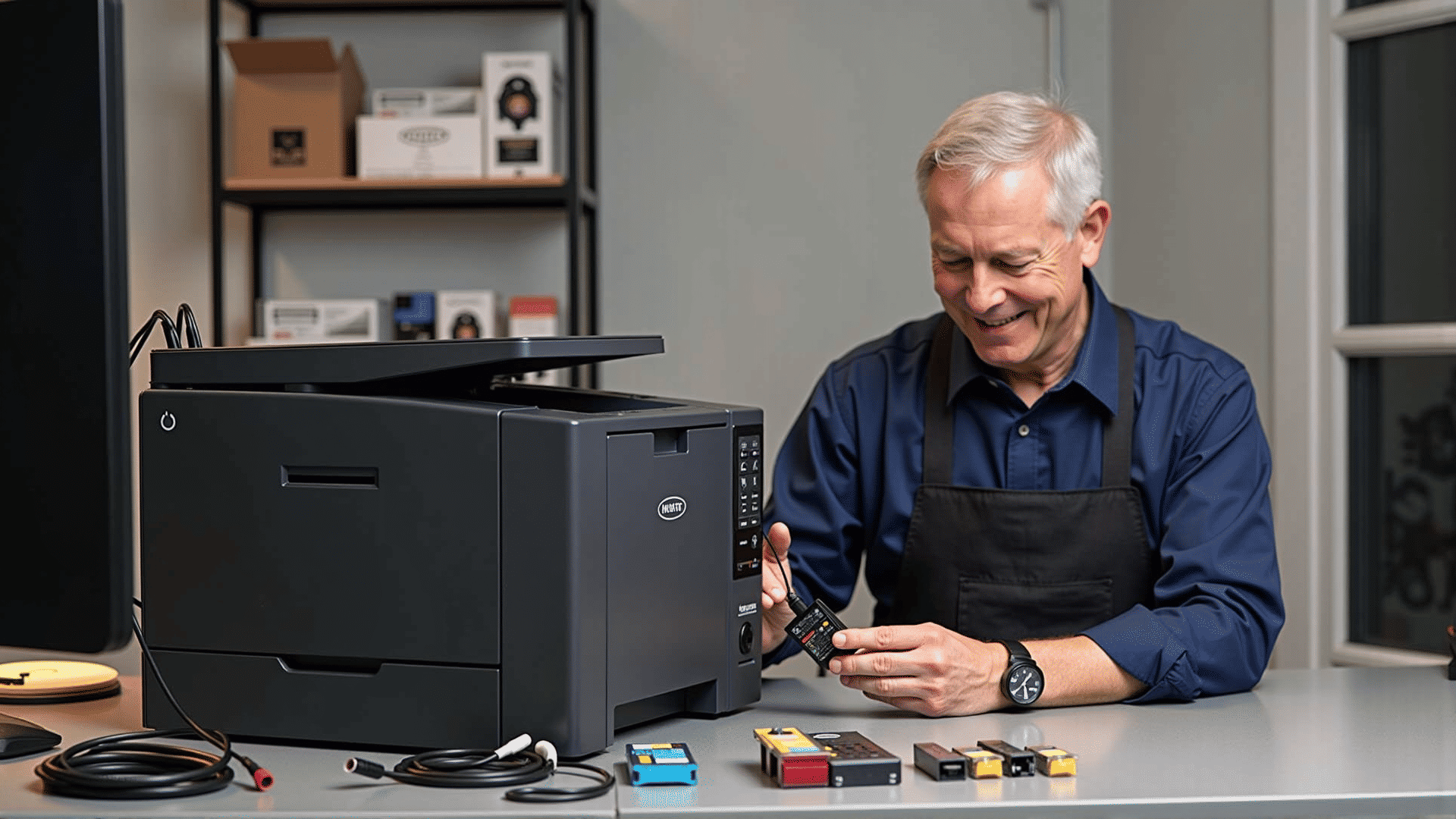
When your printer decides to act up, it can be quite frustrating, especially when you have important documents to print. Fortunately, with a little troubleshooting, many common issues can be resolved quickly. Here are some handy tips to get your printer back on track without breaking a sweat.
Check Connections
Start with the basics: ensure that your printer is properly connected to your computer or network. Check the cables and USB connections, making sure they are securely plugged in. If you have a wireless printer, verify that it is connected to the correct network.
Reboot Devices
Sometimes, a simple reboot can resolve numerous issues. Turn your printer off and disconnect it from the power source. Wait a minute before plugging it back in and powering it on. Similarly, restart your computer to ensure any previous errors are not persisting in the system.
Update or Reinstall Drivers
Printer drivers can occasionally become outdated or corrupted, leading to communication problems between the printer and computer. Visit the manufacturer's website to download and install the latest drivers for your model. If issues persist, consider uninstalling and reinstalling the drivers to ensure a fresh start.
Clear Print Queue
A jammed print queue can often cause printing to halt. Access your computer’s print queue through the printer settings or control panel, and clear any stuck jobs. After clearing the queue, try printing a test page to see if the issue is resolved.
Inspect Paper and Ink Supplies
Ensure there is enough paper in the printer tray, and check for any paper jams that may be causing trouble. It’s also wise to inspect your ink or toner levels; low supplies can prevent documents from printing correctly or at all. Refill or replace cartridges as needed.
Check for Error Messages
Modern printers often display error messages when something goes wrong. Pay attention to any codes or notifications on the printer’s display, and refer to the user manual or manufacturer’s website for guidance on what these messages mean and how to address them.
Run Printer Diagnostics
Most printers come with built-in diagnostic tools that can help identify and resolve issues. Refer to your printer’s manual on how to run a self-test or diagnostic check. These tools can automatically fix some common issues such as nozzle clogs or misaligned print heads.
Verify Settings
Incorrect printer settings can sometimes lead to problems. Ensure that your document settings align with your printer’s capabilities. Check the paper size, print quality, and other preferences in your print dialog box before sending a print job.
Maintain the Printer
Routine maintenance can prevent many common printing issues. Regularly clean print heads and perform alignment checks as per your printer model’s recommendations. Keeping your printer in a clean, dust-free environment can also enhance its performance and longevity.
By following these straightforward troubleshooting tips, you can resolve many common printer problems without the need for professional assistance. Regular maintenance and attention to your printer’s needs will ensure smooth operation and help minimize future issues.