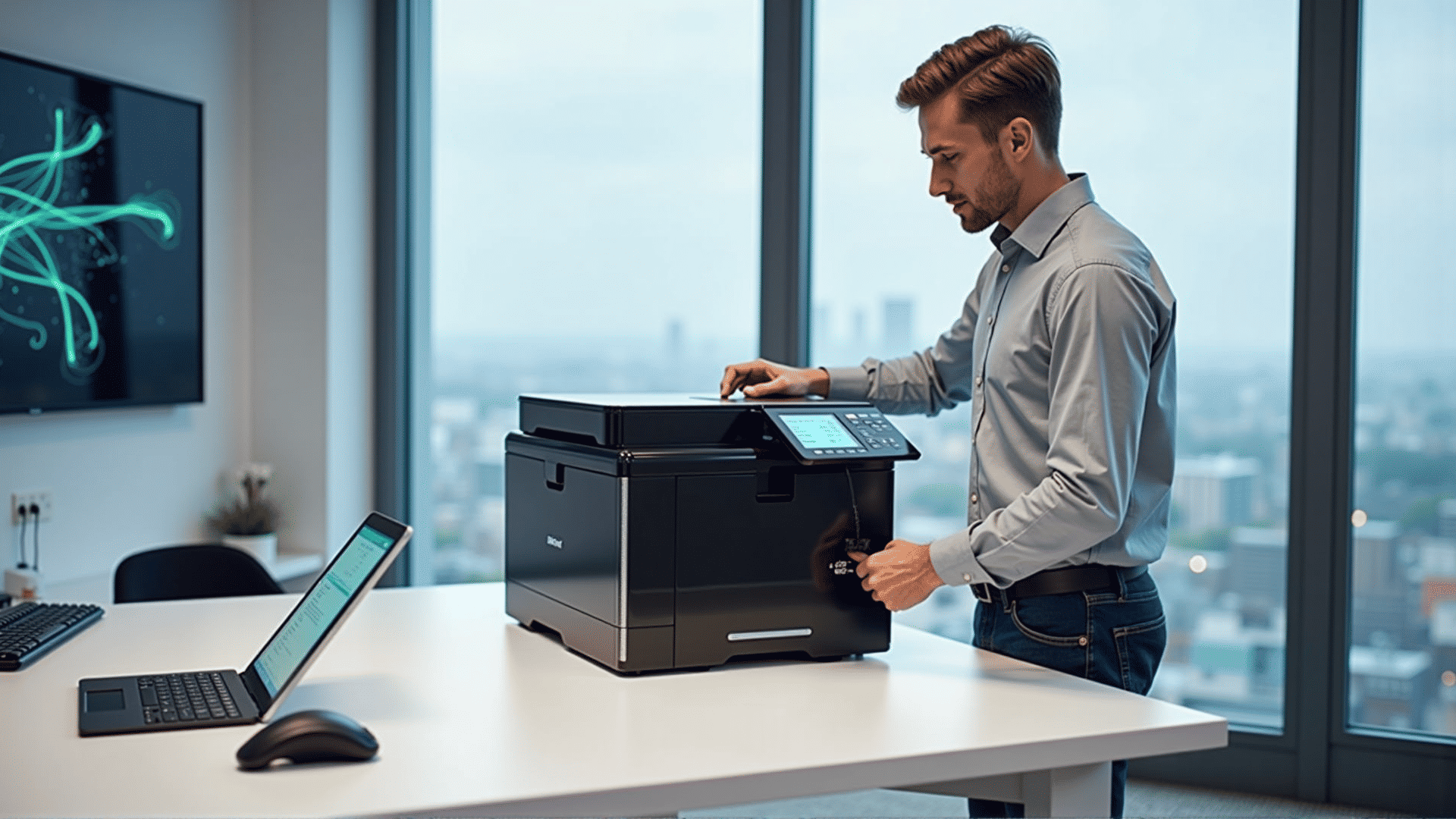
Stepping into the world of modern technology, one can easily embrace the convenience offered by smart printers. Designed to make everyday tasks simpler, these advanced devices are transforming the way we manage printing, scanning, and copying needs. This guide will lead you through a seamless installation process to get your smart printer up and running, maximizing its potential.
Understanding Your Smart Printer
Before diving into the installation process, familiarize yourself with the innovative features your smart printer offers. Typically, these devices come with wireless connectivity options, cloud printing capabilities, and built-in security features, all aimed at enhancing user experience. Knowing the key features will help you make the most of your printer.
Unboxing and Setup
Begin by carefully unboxing your new smart printer. Ensure all the components such as power cables, ink cartridges, and user manuals are present. Choose an optimal location that offers a stable power source and good Wi-Fi connectivity to ensure efficient operation.
Connecting to Power and Networks
-
Power Connection: Plug in the power cable and turn the device on. Modern printers usually have an energy-efficient mode, so look for any settings that enable this feature.
-
Network Settings: Navigate through the printer’s onboard menu to find the Wi-Fi setup. Select your home network from the list of available connections and enter the password as prompted. This will allow seamless connection to your smart devices and cloud services.
Installing Printer Drivers
To ensure your computer and smart printer communicate effectively, download the necessary drivers from the manufacturer’s website. Most companies offer a straightforward installation wizard that guides you through the process. Opt for the latest version to benefit from enhanced features and security updates.
Inking and Calibration
Next, install the ink or toner cartridges. Ensure that each cartridge is clicked securely into its designated slot. Once installed, the printer will likely prompt you to run a calibration process. This step ensures optimal print quality and color accuracy.
Exploring Connectivity Options
A standout feature of smart printers is their ability to connect with various devices. Here are some common options:
- Mobile Devices: Download the printer’s app on your smartphone or tablet for on-the-go printing.
- Cloud Services: Configure your printer with cloud services such as Google Cloud Print or AirPrint for convenient access from anywhere.
- Voice Assistants: Register your printer with compatible voice assistants like Alexa or Google Assistant for hands-free commands.
Performing a Test Print
After all connections are established, it’s time to perform a test print. This initial print verifies that the printer is correctly configured and that the network and ink systems are functioning properly. Use a test page provided in the user manual or print a document of your choice.
Troubleshooting Common Issues
While setting up, you might encounter minor issues such as connectivity hiccups or driver problems. Refer to the troubleshooting section in your user manual, which typically covers solutions for such common problems. Alternatively, the manufacturer’s support website offers comprehensive solutions and live chat assistance.
Maximizing Efficiency and Security
After installation, take time to explore settings that enhance efficiency and security. Set up secure printing to keep sensitive documents protected, and schedule maintenance routines to prolong the life of your printer.
By following these guidelines, your smart printer installation will not only be successful but also empower you to fully leverage its capabilities. From efficient home office setups to everyday personal tasks, your new device is ready to support your printing needs with enhanced convenience and reliability.